
Modifying an Android Application: Virtual & Physical Devices
NOTE
This tutorial is a continuation of the previous tutorials. Ensure your environment and virtual/physical device is prepared before continuing.
TIP
For convenience, consider adding all installed tools/tool packages to your system PATH environment variable to avoid navigation/the need to use absolute paths in commands.
To proceed with this tutorial, you will need to download/install the SSL Pinning Demo application.
SSL Pinning Demo
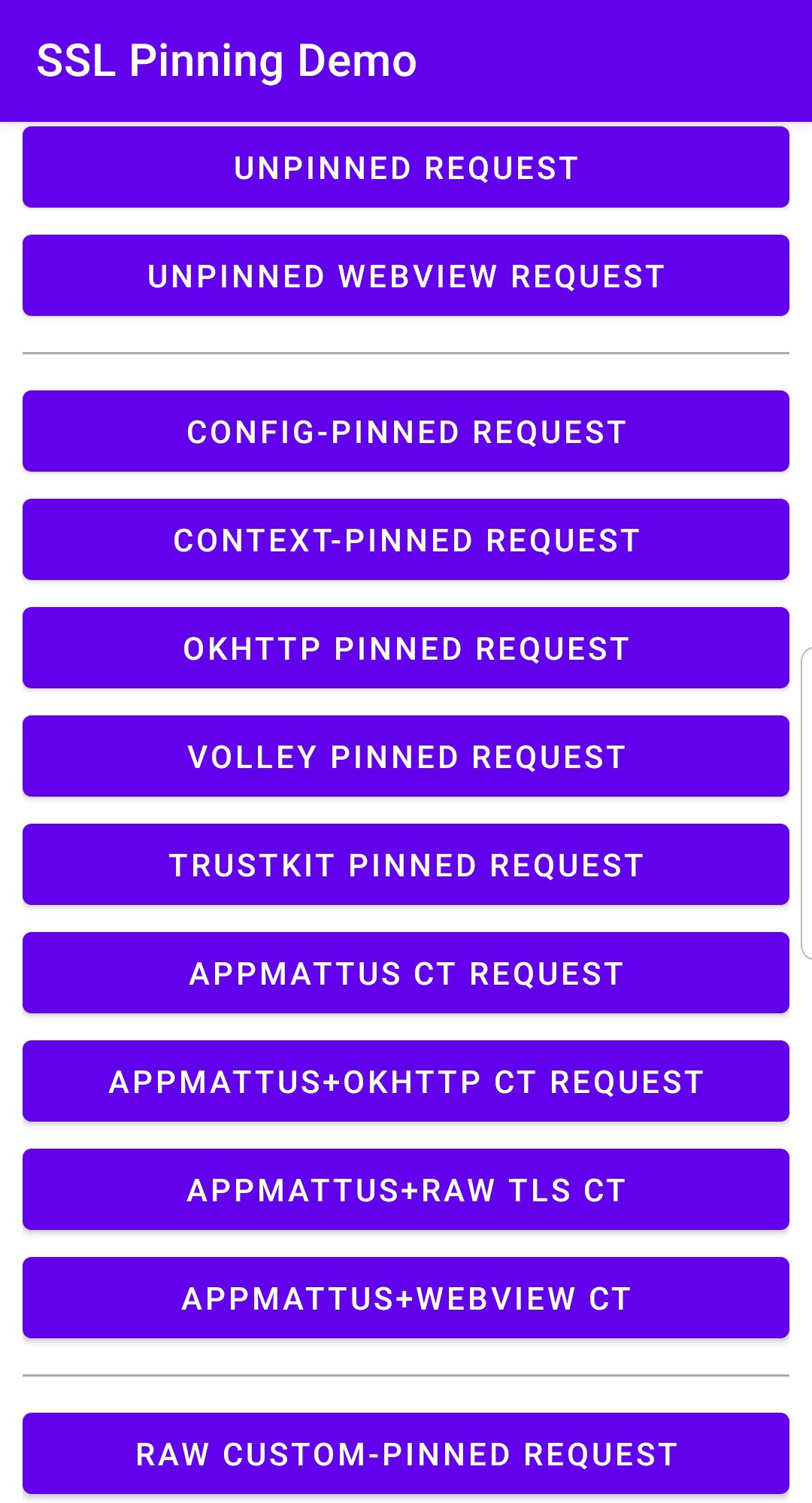
The SSL Pinning Demo is an Android application developed by HTTPToolkit for security education. It blocks HTTPS traffic from being proxied or intercepted via certificate pinning and a security configuration file.
The application provides an array of buttons that issue requests under various secure and insecure configurations. Unpacking and modifying the Android Package Kit (APK) file bundle that comprises the application demonstrates how these protective measures can be bypassed.
If an application's traffic is still not proxied through Caido or you encounter errors or limited functionality, similar protective measures likely exist in its code or configuration.
NOTE
This tutorial was written using:
- SSL Pinning Demo v1.4.1. To download this release visit: https://github.com/httptoolkit/android-ssl-pinning-demo/releases/download/v1.4.1/pinning-demo.apk
We recommend using the same version to ensure the instructions align.
INFO
- This process does NOT require a rooted device.
- Be aware that the exact names and locations of setting options may vary between devices.
- Ensure to pay attention to any prompts on the device itself while proceeding through these steps.
- For physical devices, ensure the device is connected to the computer running Caido via USB and that both the device and the computer are on the same Wi-Fi network.
- For convenience, consider adding all installed tools/tool packages to your system PATH environment variable to avoid the need to use absolute paths in commands.
Once the SSL Pinning Demo v1.4.1 APK has been downloaded to your computer, to install it on your device:
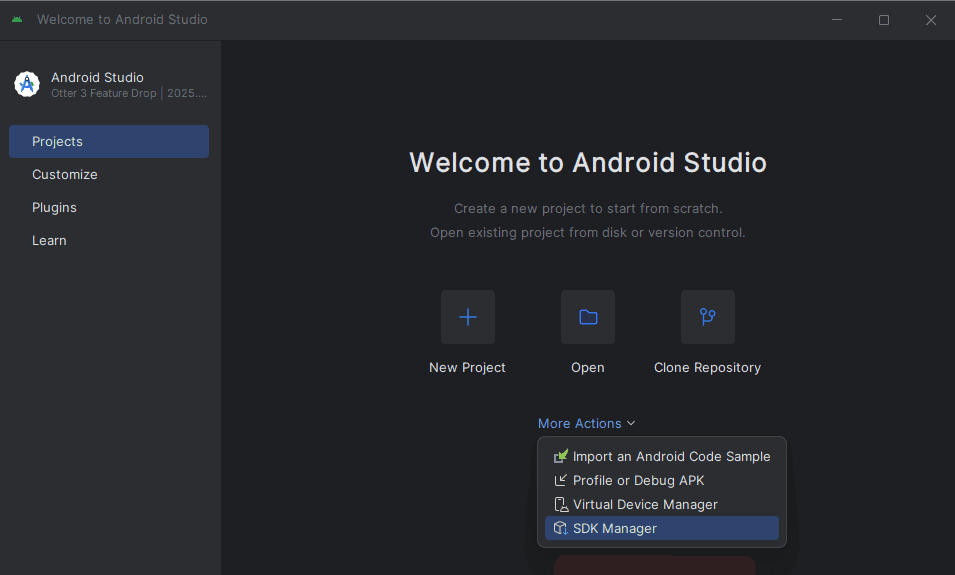
- In the Projects interface of the Android Studio window, click on the
More Actionsbutton and selectSDK Manager.
Select
Android SDKfrom the Languages & Frameworks drop-down menu.Open a terminal and navigate to the file system location stated in the
Android SDK Locationfield.

Navigate into the
platform-toolsdirectory.Execute the
adbtool withdevicesto ensure the device is listed.
./adb devices- Execute the
adbtool with the device ID as the value of the-sargument and the file system location of thepinning-demo.apkas the value of theinstallargument to install the application.
./adb -s <device-id> install </path/to/pinning-demo.apk>Extracting an APK
Once the SSL Pinning Demo v1.4.1 application has been installed on your device, to simulate extracting the APK from the installation:
- Execute the
adbtool against the device withshellto initialize a terminal:
./adb -s <device-id> shell- Find the application's
base.apkpackage on your device by listing all the file paths of installed packages and filtering the results by the application name:
./pm list packages -f | grep -i pinning
Copy the absolute file path (starting from
/dataand ending with/base.apk) and exit the device command-line interface usingCTRL+Dor by typing and enteringexit.Execute the
adbtool against the device with the file path as the value of thepullargument to pull the APK to your computer.
./adb -s <device-id> pull </data/app/<path-segments>/base.apk>
Unpacking APKs
Once you have an application's APK, to decompile the package into its individual resources:
Download and install Apktool for your operating system.
Open a terminal and navigate to the file system location of the APK file.
Execute
apktoolwithdand the output directory (e.g.unpacked) as the value of the-oargument against the APK file (e.g.pinning-demo.apk) to unpack the contents to the specified directory.
./apktool d -o unpacked pinning-demo.apk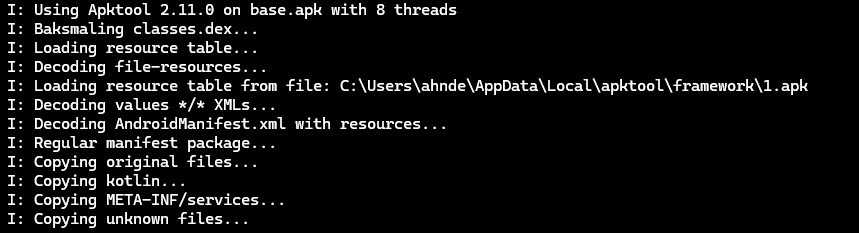
Modifying the Network Security Configuration File
Application traffic may be blocked from interception/proxying due to the presence of a Network Security Configuration file. Introduced in Android 7.0 (API level 24), the network_security_config.xml file allows developers to customize network security settings for their applications.
In some cases, modifying this file and including the <certificates src="user" overridePins="true" /> directive to trust user-supplied certificates may be sufficient enough to configure the application to be Caido compatible.
To make the appropriate changes:
Open the
/res/xml/network_security_config.xmlfile from the unpacked directory in an editor (or, if it doesn't exist, create it).Replace/write the content of the file to:
<?xml version="1.0" encoding="utf-8"?>
<network-security-config>
    <!-- Base configuration that applies to all connections if not overridden. -->
    <base-config>
        <!-- Define which certificates should be trusted as root CAs (trust anchors). -->
        <trust-anchors>
            <!-- Trust the pre-installed system certificates. -->
            <certificates src="system" />
            <!-- Trust user-installed certificates (like Caido's CA) and allow them to override certificate pinning. -->
            <certificates src="user" overridePins="true" />
        </trust-anchors>
    </base-config>
</network-security-config>
Save the changes to
/res/xml/network_security_config.xml.Ensure that the main configuration file,
AndroidManifest.xmlreferences thenetwork_security_config.xmlfile via theandroid:networkSecurityConfig="@xml/network_security_config"attribute in the<application>tag. If you created a newnetwork_security_config.xmlfile, you will have to explicitly add this.Save any changes to
AndroidManifest.xml.Open a terminal and navigate to the file system location of the unpacked APK.
Execute
apktoolwithband the output filename (e.g.modified) as the value of the-oargument against the unpacked APK directory (e.g.unpacked) to repack the contents into an APK.
./apktool b -o modified.apk unpacked
Download and install Java Development Kit (JDK) for your operating system.
Open a new terminal and navigate to the
/bindirectory of the JDK installation.Execute
keytoolto generate a signing key with a keystore filename as the value of the-keystoreargument (e.g.custom.keystore).
./keytool -genkey -v -keystore custom.keystore -alias aliasname -keyalg RSA -keysize 2048 -validity 10000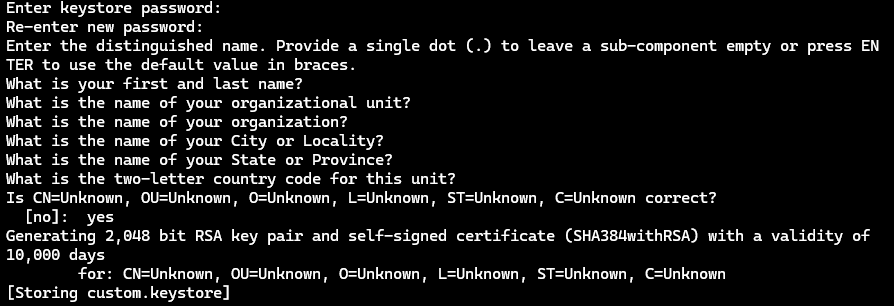
Follow the prompts to configure the key.
Navigate to the file system location stated in the
Android SDK Locationfield.Navigate into the version subdirectory of the
build-toolsdirectory.Execute
zipalignwith-p 4against the file system location of the repacked APK filename (e.g.modified.apk) and specify a new APK file system location for the aligned file (e.g.aligned.apk).
./zipalign -p 4 </path/to/modified.apk> </path/to/aligned.apk>- Sign the APK with:
./apksigner sign --ks </path/to/custom.keystore> </path/to/aligned.apk>Navigate to the
platform-toolsdirectory.Execute the
adbtool against the device withuninstall tech.httptoolkit.pinning_demoto uninstall the existing installation.
./adb -s <device-id> uninstall tech.httptoolkit.pinning_demo- Install the modified application on the device.
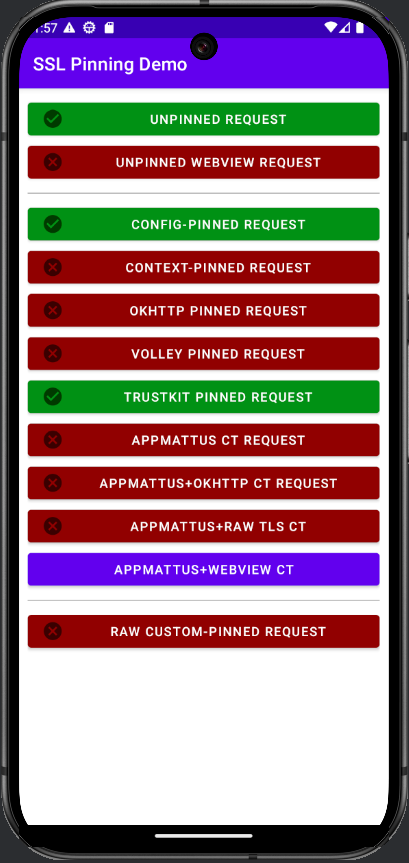
./adb -s <device-id> install </path/to/aligned.apk>Open the SSL Pinning Demo application on your device. Modifying the network_security_config.xml file allows for the following requests (highlighted in green):
You will now see traffic generated by the application in Caido's HTTP History traffic table.
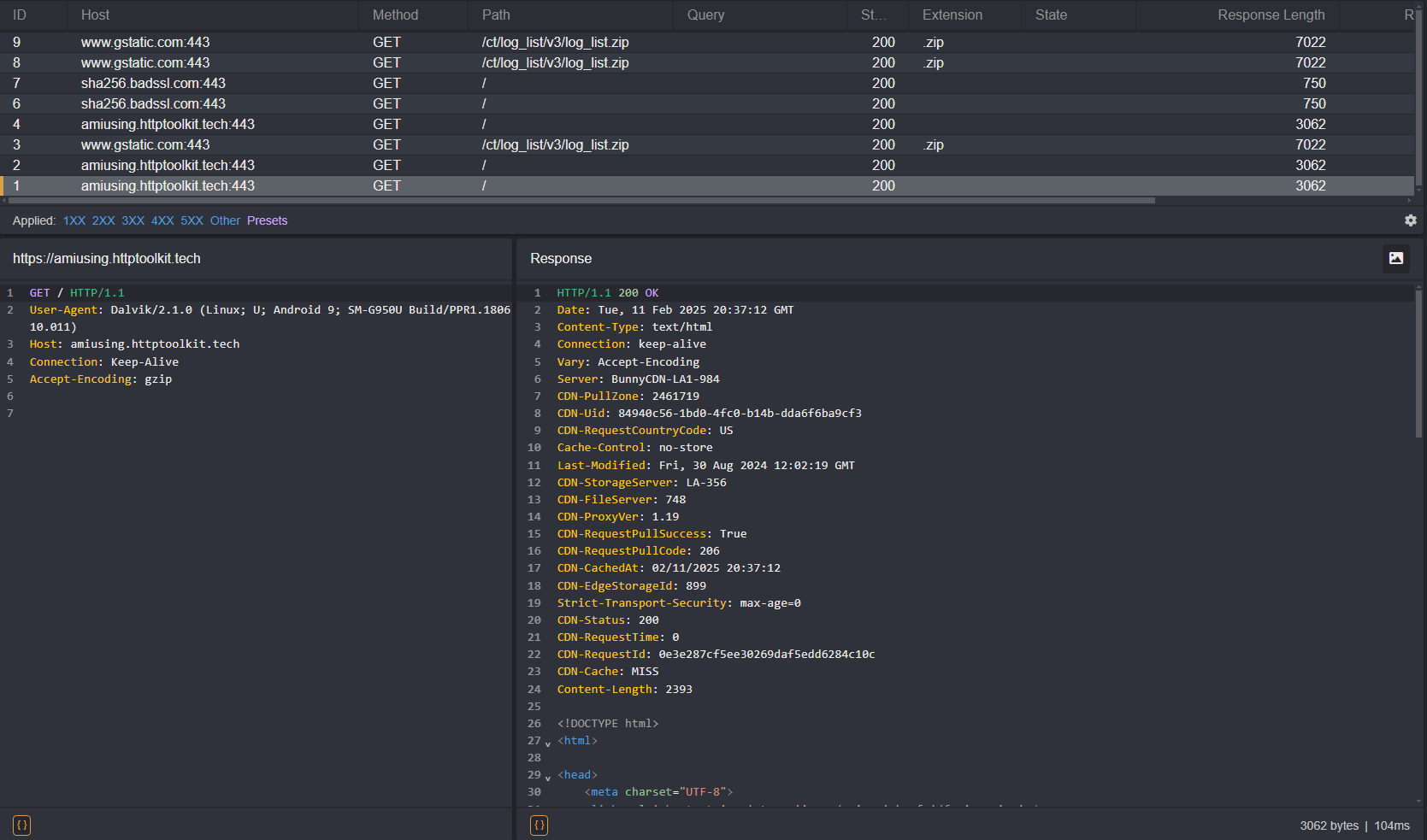
As you can see, certain requests still result in an error message and are not proxied through Caido. This is due to certificate pinning within the codebase itself.
Frida
Frida is a toolkit that allows you to hook custom scripts into running Android application processes, enabling real-time analysis and modification. This can be used to modify the processes are checking the SSL/TLS certificates.
Frida Gadget
Since certain Frida operations may not work with unrooted devices, you will also need the Frida Gadget library. Once we inject the library into the APK, we can then send commands to it using the CLI tools.
To check what download you will need for your device's architecture:
Navigate to the
platform-toolsdirectory.Execute the
adbtool against the device withshell getprop ro.product.cpu.abito get the device's CPU ABI.
./adb -s <device-id> shell getprop ro.product.cpu.abiThen, choose the appropriate Frida Gadget library download:
- For
armeabi-v7aorarmeabi: android-arm.so.xz - For
arm64-v8a: android-arm64.so.xz - For
x86: android-x86.so.xz - For
x86_64: android-x86_64.so.xz
TIP
The provided links will download v16.6.6. View the latest releases in the Frida repository.
Once downloaded, extract the library and rename it to:
libfrida-gadget.soBypassing Hardcoded Certificate Pinning
To bypass hardcoded certificate pinning protections, we will need to insert the Frida Gadget library into the main "activity" stated in the AndroidManifest.xml configuration file. In Android development, an activity is the term used to refer to a specific page/screen of the application.
- Open the
AndroidManifest.xmlfile of the unpacked APK in a text editor:
<?xml version="1.0" encoding="utf-8"?>
<manifest xmlns:android="http://schemas.android.com/apk/res/android" android:compileSdkVersion="33" android:compileSdkVersionCodename="13" package="tech.httptoolkit.pinning_demo" platformBuildVersionCode="33" platformBuildVersionName="13">
    <uses-permission android:name="android.permission.INTERNET"/>
    <application android:allowBackup="true" android:appComponentFactory="androidx.core.app.CoreComponentFactory" android:extractNativeLibs="false" android:icon="@mipmap/ic_launcher" android:label="@string/app_name" android:networkSecurityConfig="@xml/network_security_config" android:roundIcon="@mipmap/ic_launcher_round" android:supportsRtl="true" android:theme="@style/Theme.MyApplication">
        <activity android:exported="true" android:name="tech.httptoolkit.pinning_demo.MainActivity">
            <intent-filter>
                <action android:name="android.intent.action.MAIN"/>
                <category android:name="android.intent.category.LAUNCHER"/>
            </intent-filter>
        </activity>
    </application>
</manifest>- The
applicationtag will contain anandroid:extractNativeLibsattribute. In order for the Frida Gadget library to function properly, this needs to be set to"true":
android:extractNativeLibs="true"- Next, search for the
activitytag with a nestedintent-filtertag that contains:
<action android:name="android.intent.action.MAIN"/>
<category android:name="android.intent.category.LAUNCHER"/>
Within this activity tag will be a android:name attribute which stores the full name of the package that serves the main activity of the application upon launch:
tech.httptoolkit.pinning_demo.MainActivityINFO
The packages can be recognized by their ending syntax of <Keyword>Activity (e.g. MainActivity, SplashActivity, WindowActivity, LauncherActivity, etc.).
Recursively search through the unpacked APK for the
MainActivity's.smalifile.Open the
smali/tech/httptoolkit/pinning_demo/MainActivity.smalifile and locate the.method public constructor <init>()Vinitialization function:
.method public constructor <init>()V
    .locals 0

    .line 51
    invoke-direct {p0}, Landroidx/appcompat/app/AppCompatActivity;-><init>()V

    return-void
.end method- Modify this function class definition to include the Frida Gadget script and increment the value of its
.localsproperty to account for the change:
.method public constructor <init>()V
    .locals 1

    const-string v0, "frida-gadget"
    invoke-static {v0}, Ljava/lang/System;->loadLibrary(Ljava/lang/String;)V

    .line 51
    invoke-direct {p0}, Landroidx/appcompat/app/AppCompatActivity;-><init>()V

    return-void
.end method
Next, create a
libdirectory in the unpacked APK folder, an architecture specific subdirectory, and move thelibfrida-gadget.sofile into it (example:/unpacked/lib/x86_64/libfrida-gadget.so).Navigate to the
platform-toolsdirectory.Execute the
adbtool against the device withband the output filename (e.g.frida-app.apk) as the value of the-oargument against the unpacked APK directory (e.g.unpacked) to repack the contents into an APK.
./apktool b -o frida-app.apk <path/to/unpacked>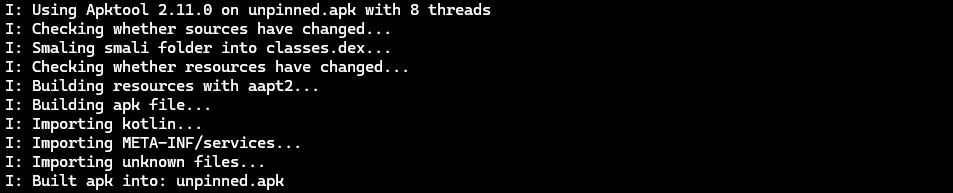
Navigate into the version subdirectory of the
build-toolsdirectory.Sign the APK with:
./apksigner sign --ks custom.keystore frida-app.apk- Uninstall the original application from the device:
./adb uninstall tech.httptoolkit.pinning_demo- Install the modified APK:
./adb install frida-app.apk- Next, open the SSL Pinning Demo application on your device. The screen will be blank as it is awaiting the script that will hook into the application's initialization. Supply it with:
./frida -U gadget --codeshare fdciabdul/frida-multiple-bypass- Depending on the script used, you will now be able to make additional requests that were previously blocked when we only modified the
network_security_config.xmlfile and see traffic in Caido's HTTP History.
Bypass Scripts
Various HTTP libraries and their versions will require certain scripts in order to successfully bypass them.
Frida CodeShare
Frida Codeshare is Frida's official repository of scripts that can be called using the --codeshare command-line option.
./frida -U gadget --codeshare <author>/<file>WARNING
When sourcing files online, ensure to evaluate the code for any malicious operations before executing it.
You can also write them yourself or source them alternative repositories. To specify a file, use the -l command-line option followed by the file's location:
./frida -U gadget -l <file>